Jumpseat is a set price that can be changed at any time by our staff without warning. Ensure you select the correct location before submitting as this is non-refundable.
# Account Settings You are able to modify anything to do with your account within **Pacific Airways** To access your *Account Settings* you click on the avatar on the *top right* of the website and select **Settings**. [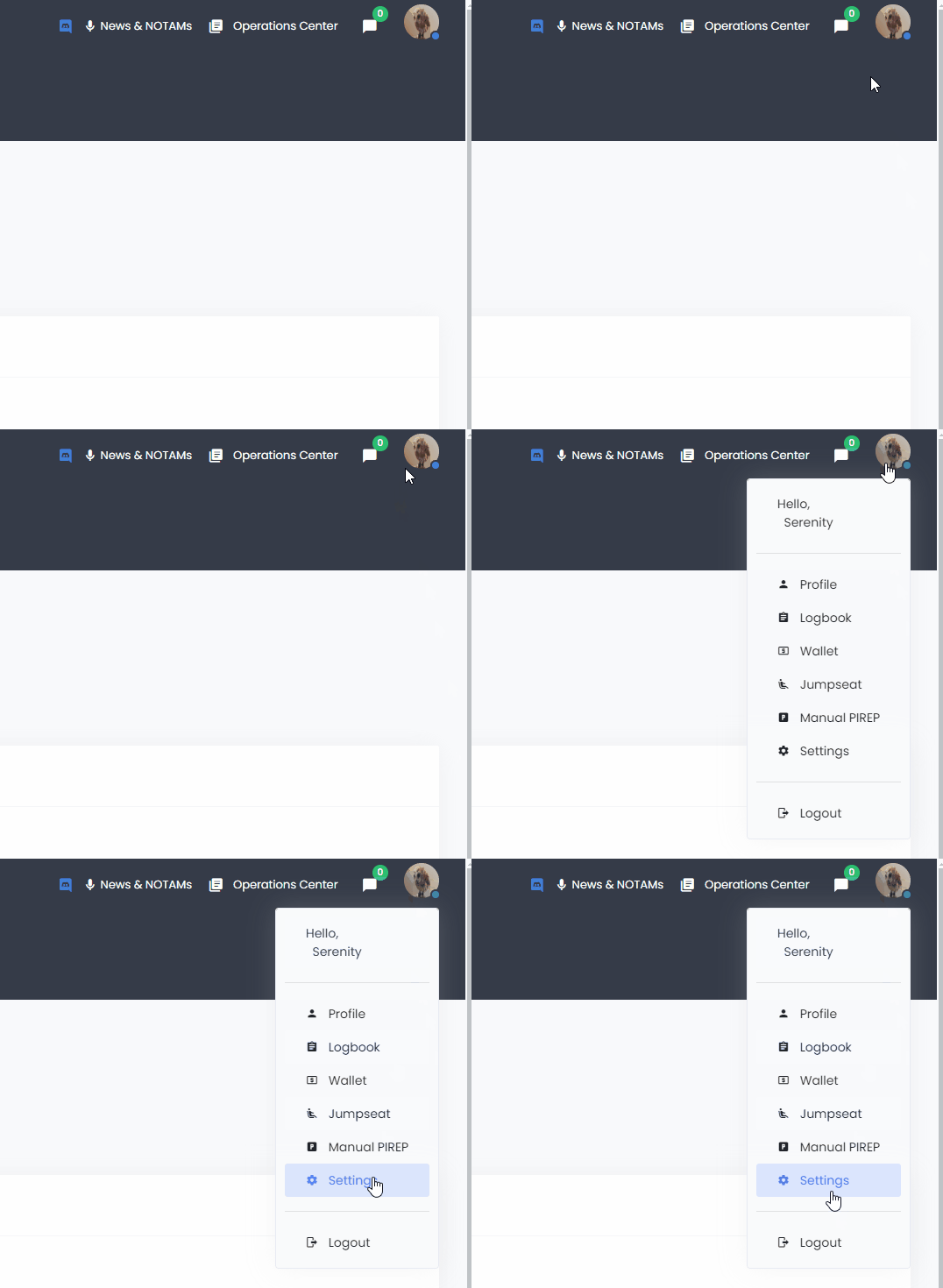](https://ops.pacificairways.net/uploads/images/gallery/2024-03/settings-1.gif) You can update various parts of your account: - Country - Discord ID - Vatsim ID - Upload Avatar # Dispatching Flights # Scheduled Flights We have over **3000+** scheduled flights for our pilots to choose from, visit **Dispatch Center** and click on **Find Scheduled Flights**.**Note:** you can only depart from your current virtual location, you can click on your current **ICAO** location to show flights departing from it.
To select a flight you click on the **Flight No.** of the route you wish to take [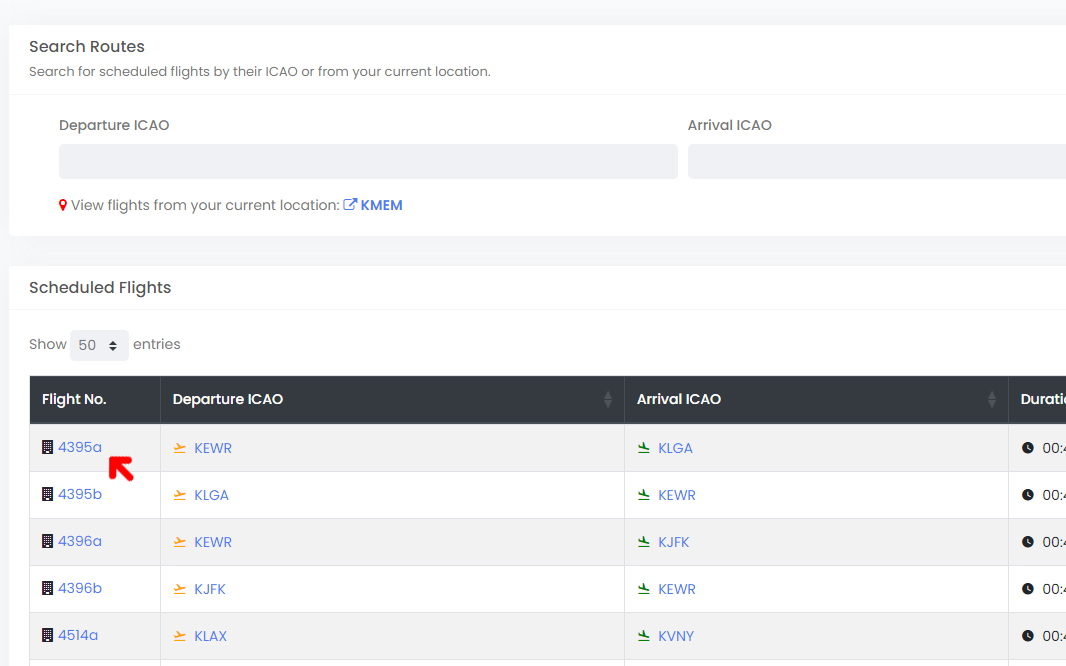](https://ops.pacificairways.net/uploads/images/gallery/2024-03/sched-1.png) This will then load up the flight information, once you have determined that you wish to fly the route you have selected you can click on **Dispatch Flight**. [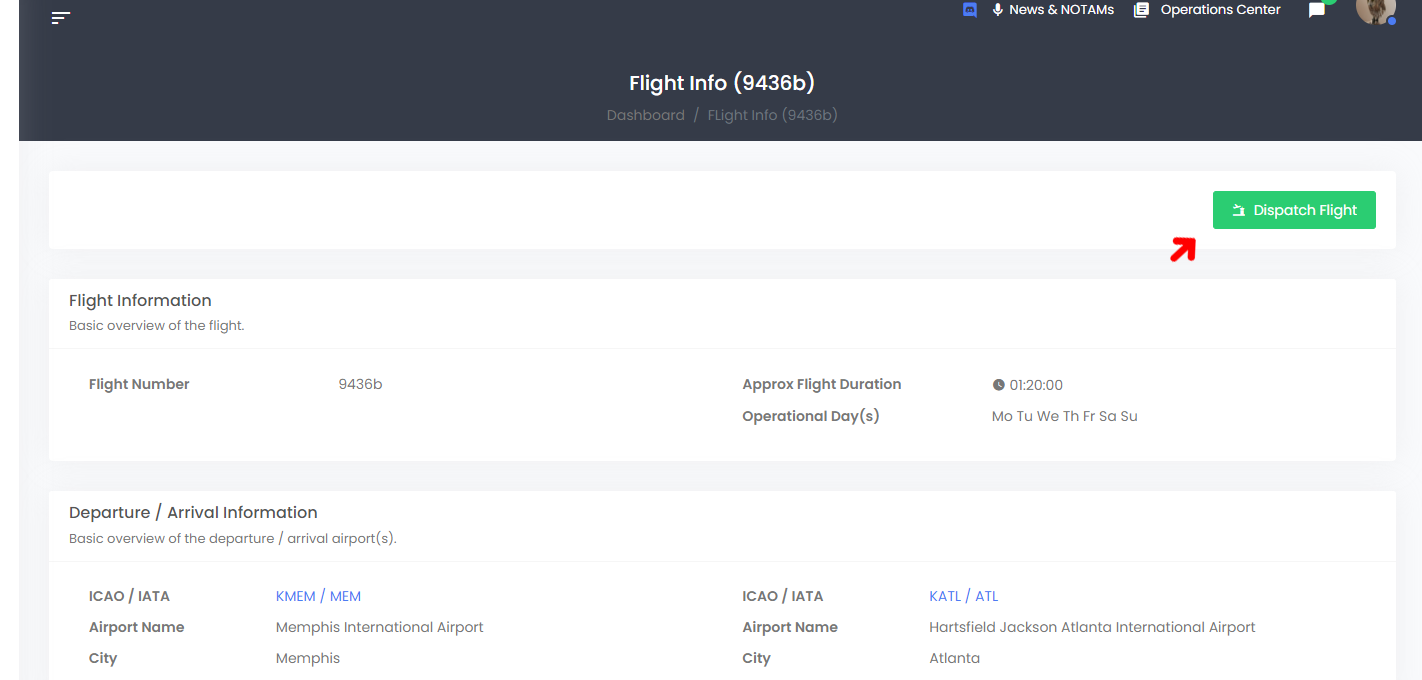](https://ops.pacificairways.net/uploads/images/gallery/2024-03/sched-2.png) Once you click on **Dispatch Flight** button the flight will then be assigned to you. You can now click on the **Dispatch Center** button or click on **Dispatch Center** on the left man navigation bar, an alert will also show up on the **Dashboard** indicating that you have an active flight. [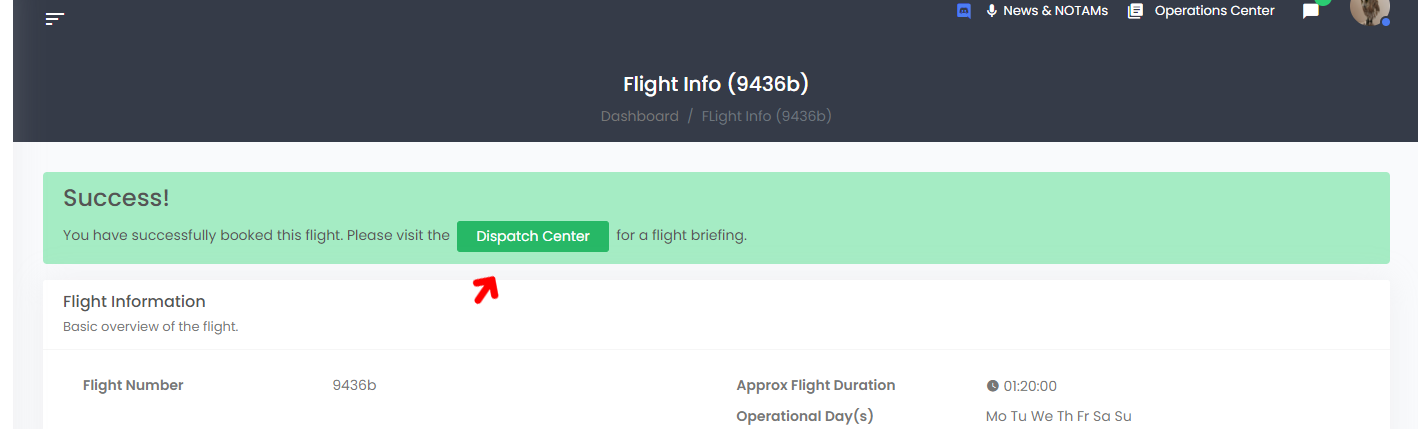](https://ops.pacificairways.net/uploads/images/gallery/2024-03/sched-3.png) You can now fly this route via our **ACARS** software, but you can also **Dispatch via Simbrief** this will allow you to create a full flight plan through SimBrief. Just click on the **Dispatch via Simbrief** button and fill in the appropriate information required to create a full flight plan, you do not have to visit SimBrief as you can do it via our website, but that's entirely up to you. [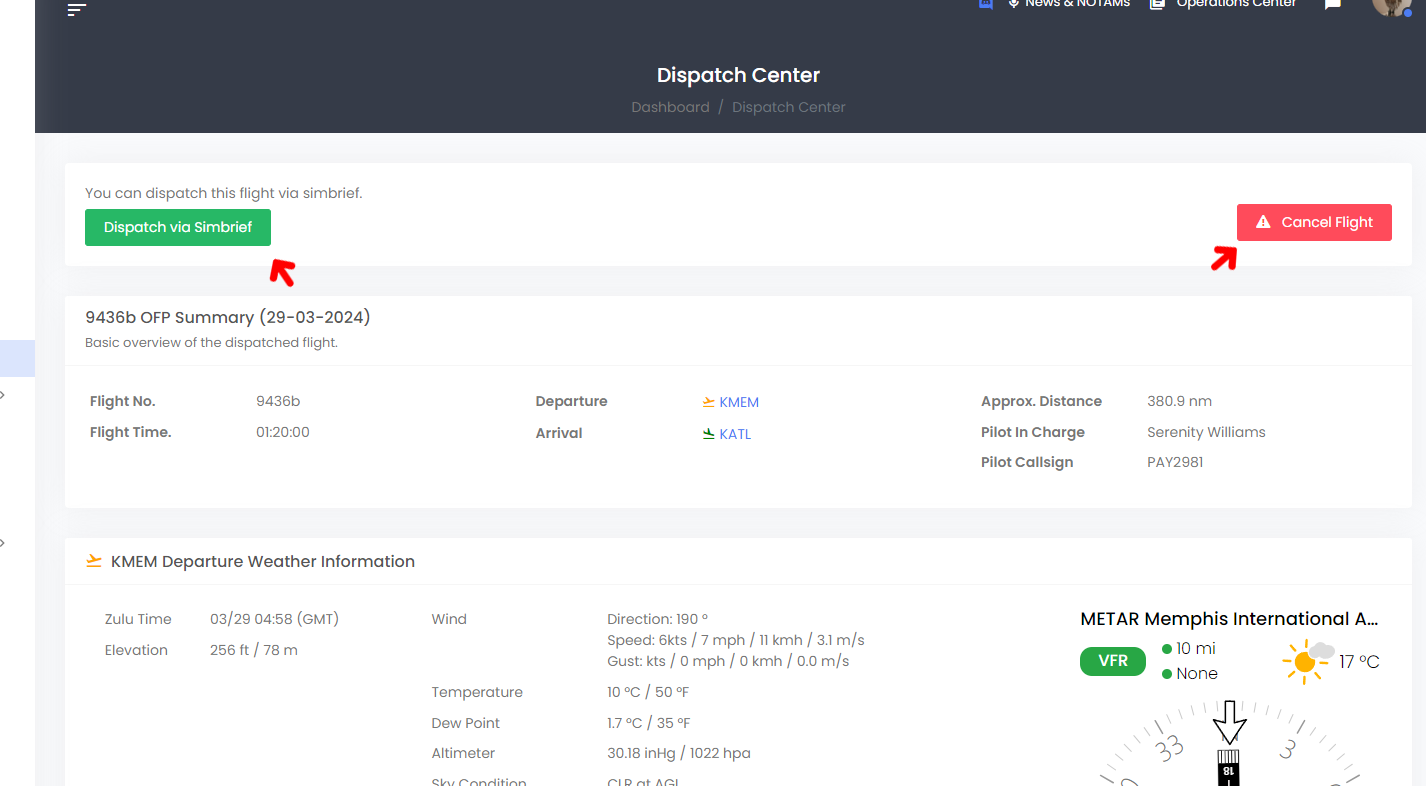](https://ops.pacificairways.net/uploads/images/gallery/2024-03/sched-4.png) If you choose to no longer fly the route you can click on the **Cancel Flight** button and this will terminate the job.You will **not** be deducted any credits for cancelling a flight.
# Charter Flights Our pilots have the option to generate a C**harter** flight via our **Dispatch Center** and click on **Dispatch Charter Flight**.**Note:** you can only depart from your current virtual location, your departure location will automatically be added to the flight plan.
[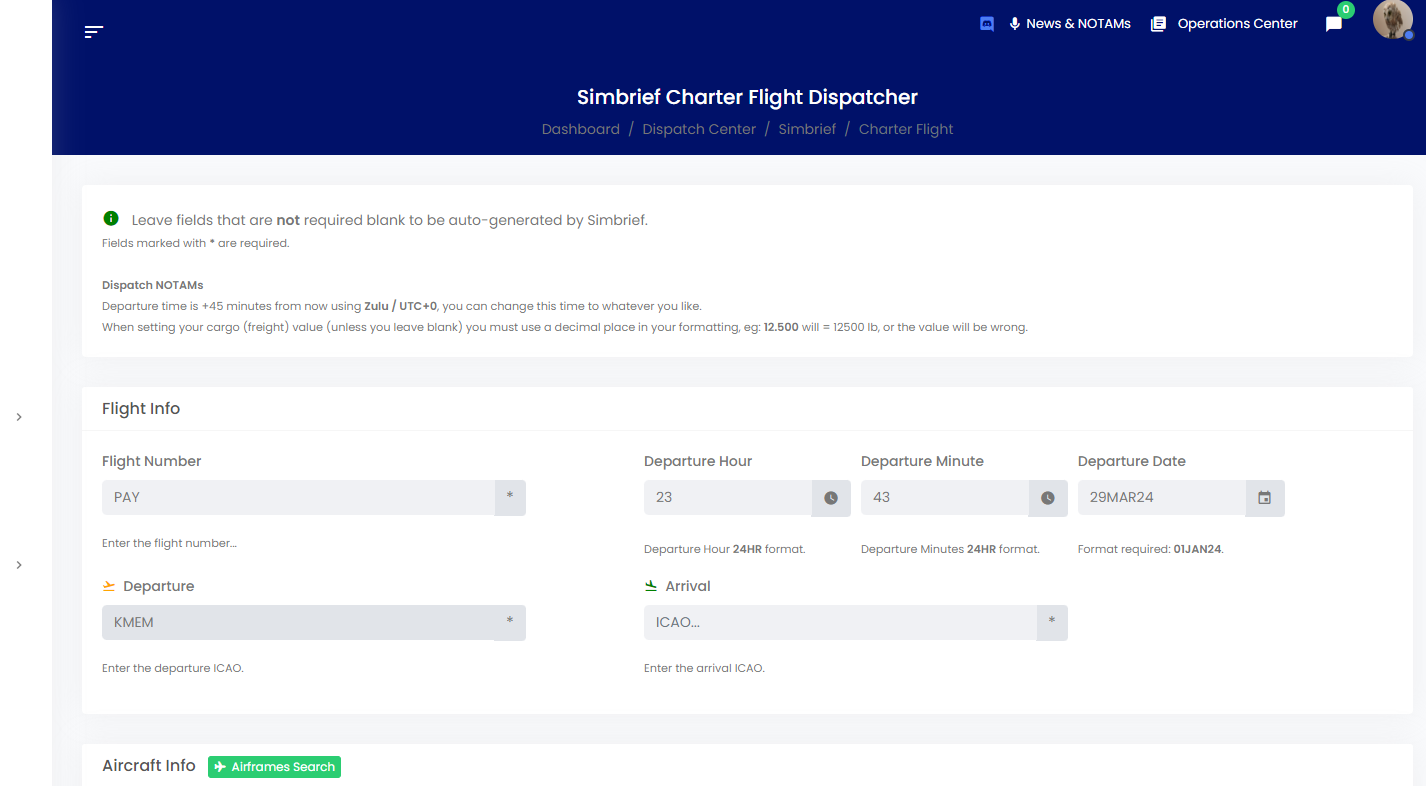](https://ops.pacificairways.net/uploads/images/gallery/2024-03/charter-1.png) This system uses our **SimBiref** integration tool, which will submit a flight plan through simbrief and will give you the option to *pre-file* via vatsim. You just fill the **\*** required fields and any additional fields you wish to fill then click on **Dispatch Flight**. This will then open a SimBrief pop-up window showing the flight plan being generated, once it has been generated, the website will then redirect you to the generated plan as shown below. [](https://ops.pacificairways.net/uploads/images/gallery/2024-03/charter-2.gif) Within this page shows all the information you need for your flight plan. You can also download the **Flight PDF**, pre-file plan on **Vatsim** and more by clicking on the **Actions** button. [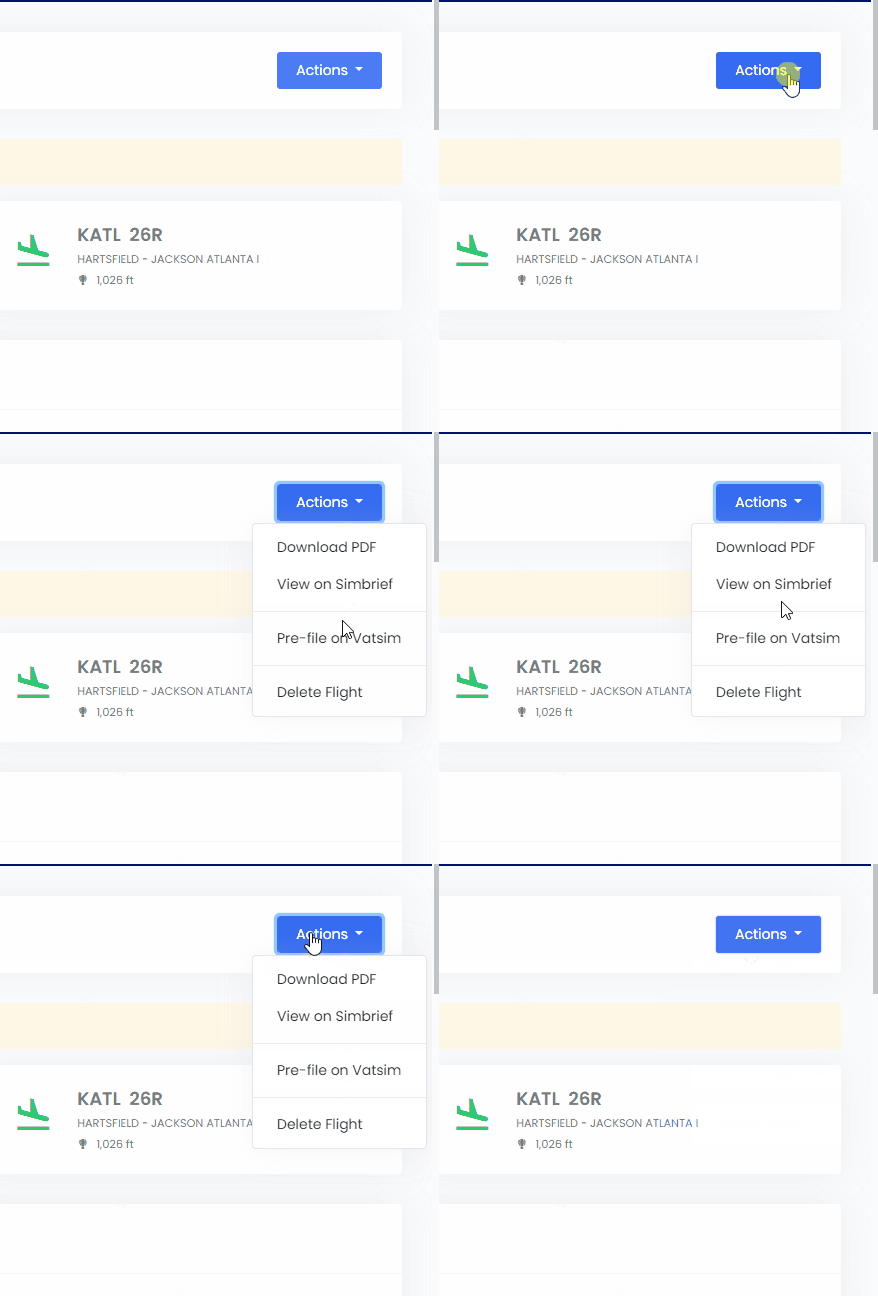](https://ops.pacificairways.net/uploads/images/gallery/2024-03/charter-3.gif) Then in our ACARS you just click on **From Dispatch,** this system also works the same when flying tours & events as well ad scheduled flights. # Tours & Events We run regular tours & events at Pacific Airways in which our pilots can participate in. Pilots earn awards and additional XP in participating in them. To join an event or tour, you can visit **Events / Tours** section of the crew center. [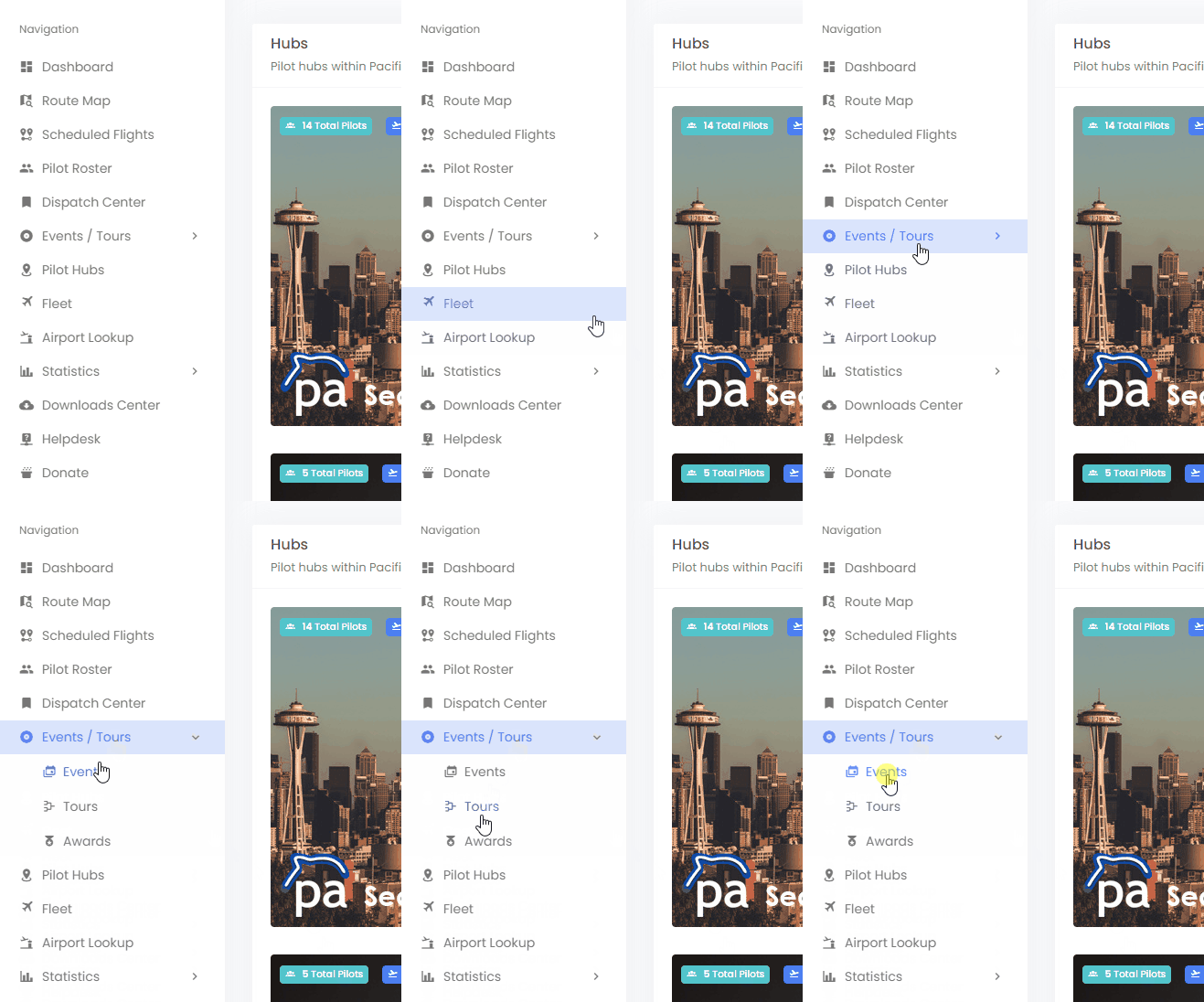 ](https://ops.pacificairways.net/uploads/images/gallery/2024-03/events-1.gif) You can choose which area you would like to visits. In this example we are going to join an event, click on **Events** then you can choose which event to join to bring up the event details. [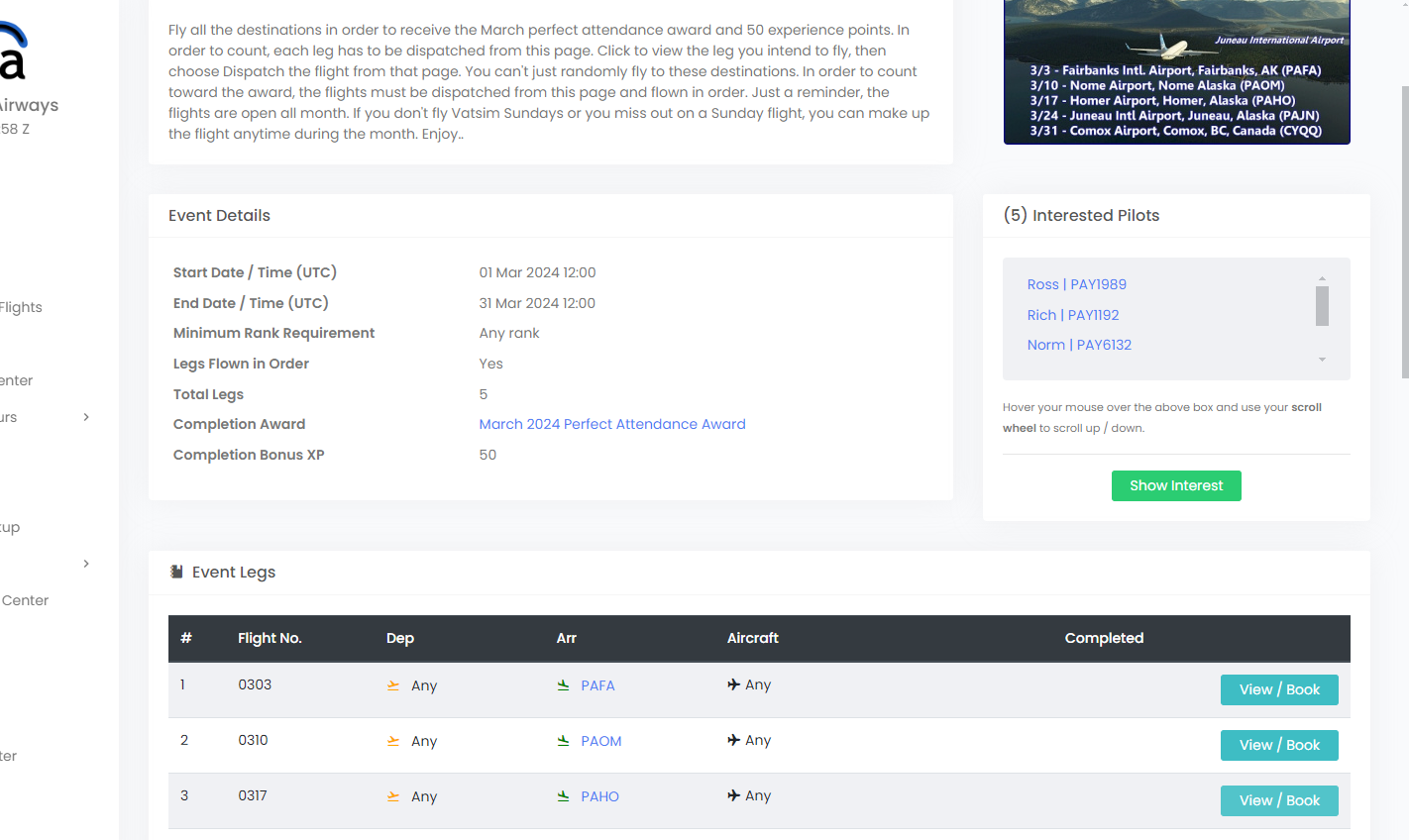](https://ops.pacificairways.net/uploads/images/gallery/2024-03/event-2.png) Within the events information you will see the following: - Event details - Event Legs - Interest - Pilots Participating - Events Map To participate in the event you click on the **View / Book** button and this will start the flight assignment procedure.If the event / tour is marked with **Legs Flown in Order = Yes** then the legs must be flown in order.
If it is an event generally it will be **Fly In / Out** based on what the **Dep & Arr** shows, if they show **Any** this means anywhere. # Fleet We fly many planes and create official Pacific Airways liveries for them. To visit our fleet section you can click on **Fleet** on the main navigation bar. [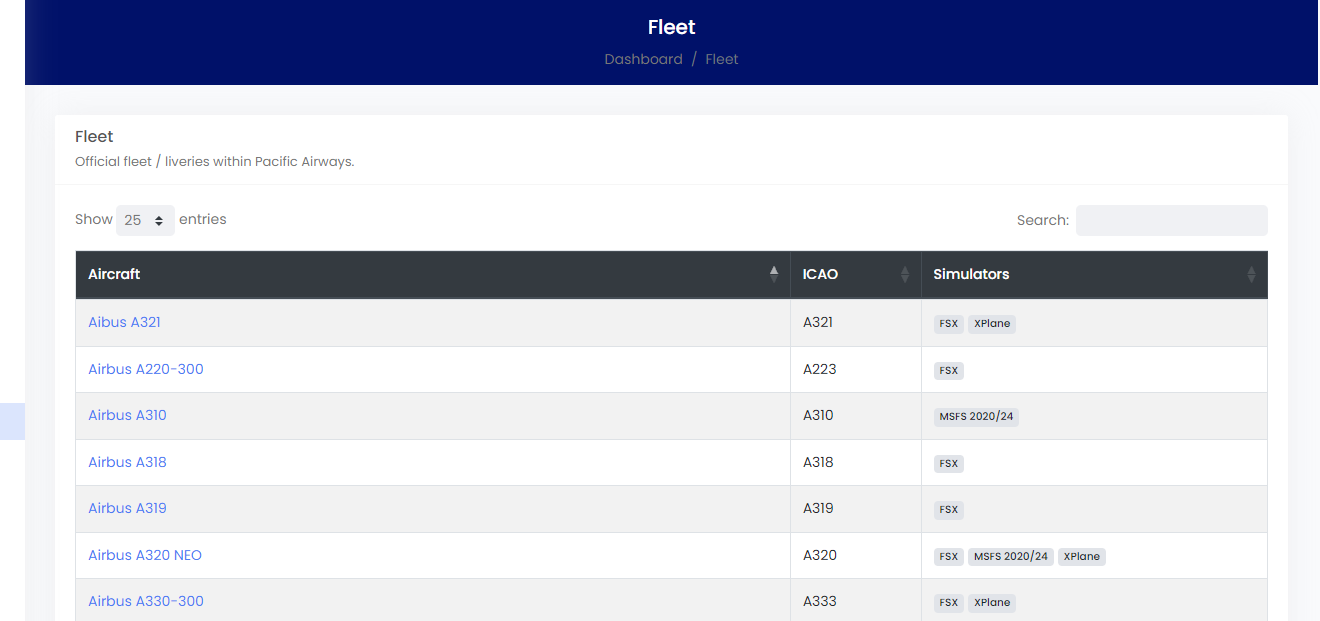](https://ops.pacificairways.net/uploads/images/gallery/2024-03/fleet-1.png) Here you will see a list of our official aircraft, under **Simulators** this is a indicator of supported liveries for that particular aircraft. You can click on the **Aircraft** name to bring up its information. [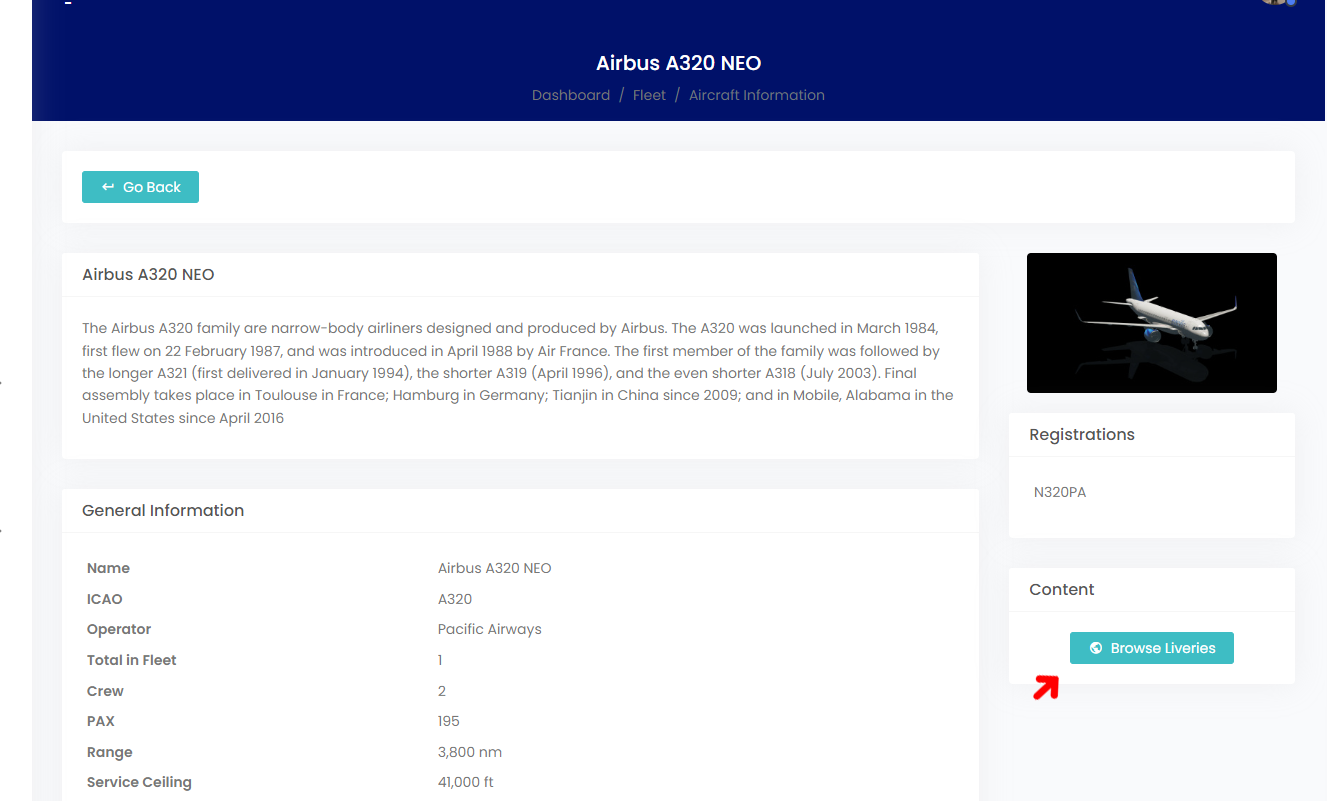](https://ops.pacificairways.net/uploads/images/gallery/2024-03/fleet-2.png) To download liveries for the selected aircraft you click on **Browse Liveries** button, this will then take you to the folder where you can download liveries. If we do not have a livery for an aircraft you can join our [**Discord** ](https://discord.gg/YX9amN6zrT)server and request one or you can create a support ticket in our crew center. # Leave Of Absence When one of our pilots require some time off, we have a system in place that allows our pilots to go on leave. To submit a manual PIREP you click on the **avatar** on the top right of the website & then you click on **Leave Of Absence.** [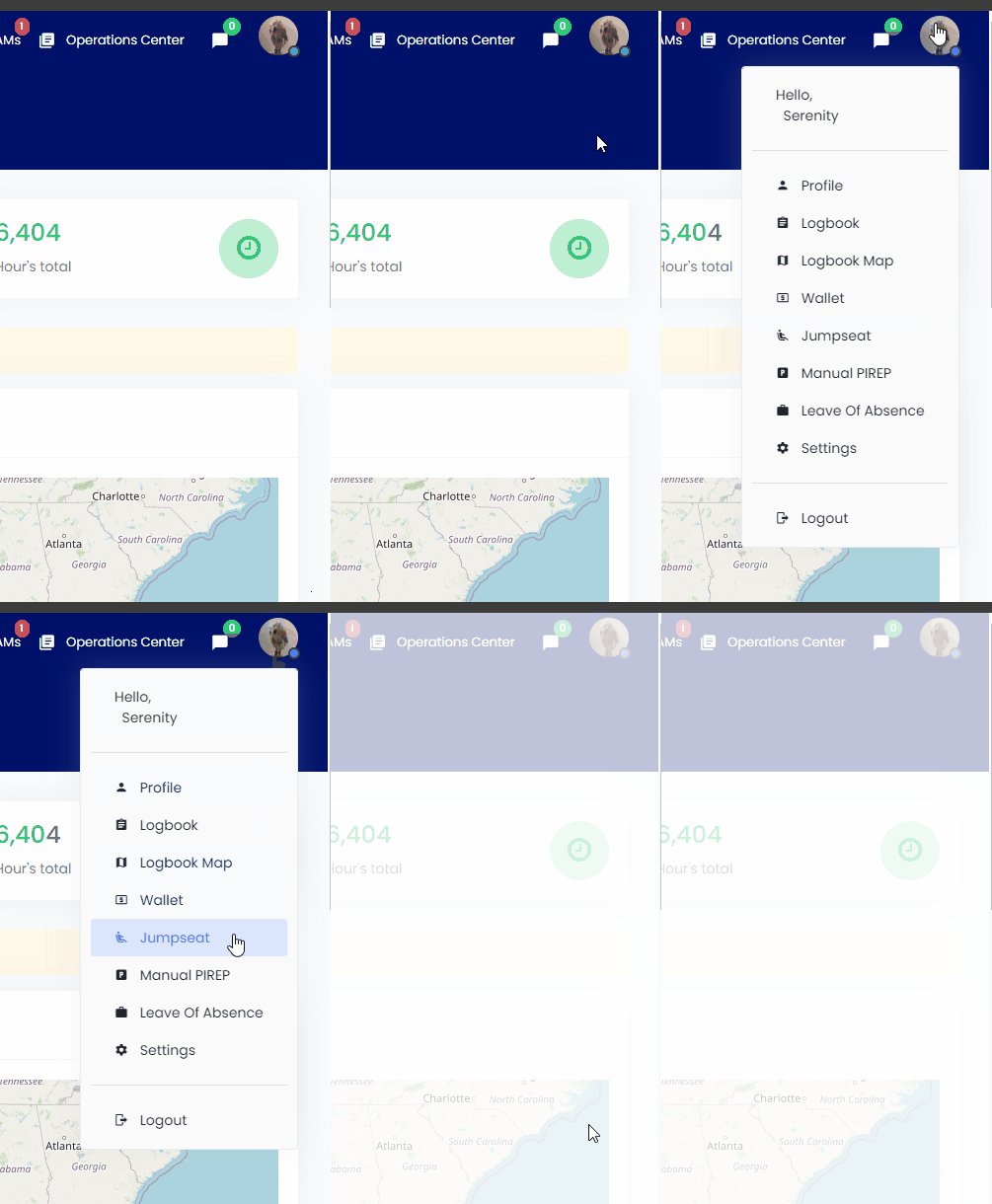](https://ops.pacificairways.net/uploads/images/gallery/2024-04/loa.gif) From there you need to provide the following information: - Start Date - End Date - Reason Once you have **submitted** the form, one of our team members will review it and if it is accepted then your all set to go. ##### What if i need an extension? We have also thought of that and if you click on the **avatar** on the top right of the website & then you click on **Leave Of Absence** you can then extend it by contacting one of our **Executive Team** members by clicking on the provided link with a new **end date**.